Desktop app
Run code
Run a snippet or a file from the Mac app. No sandbox to create or clean up.
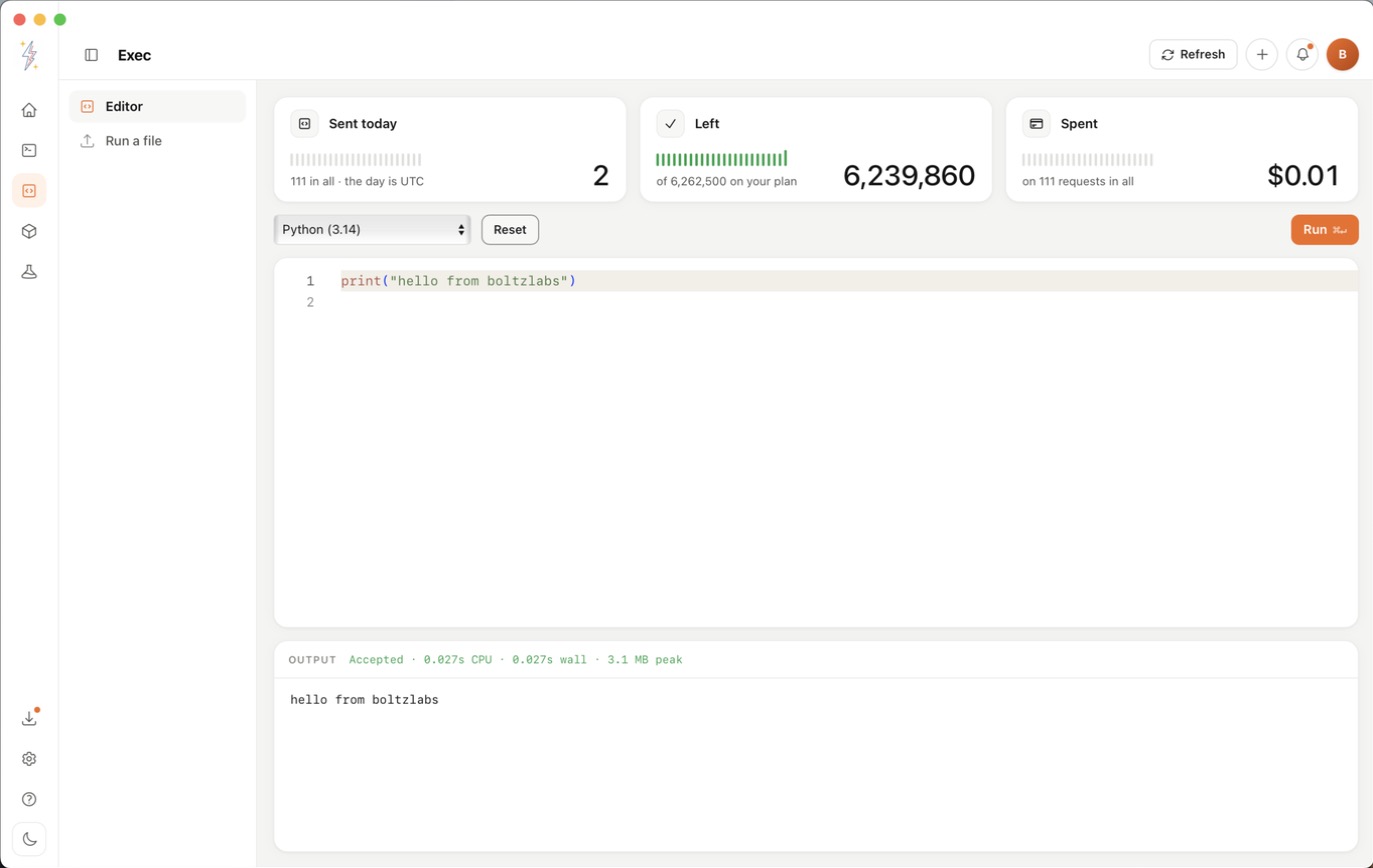
Install the app and sign in first: see the quickstart. Then open Exec on the left. The top shows how many runs you sent today, how many you have left and what they have cost. Days are counted in UTC.
Write and run code
- Open Editor and pick a language from the menu. The editor fills with a short example. Reset brings it back.
- Write your code.
- Press Run, or ⌘ Return.
The output appears below the editor, with errors in red. Next to Output you see the result, the time taken and the memory used.
Run a file
- Open Run a file.
- Drop a file on the box, or click it to choose one. Files can be up to 256 KB. The language is picked from the file name; change it in the menu if needed.
- Press Run.
The output appears under the file. Runs on the right lists what you ran on this screen; click one to see its output again. The list clears when you leave the screen.
Languages and limits
See Supported languages for what you can run, and Run code pricing for how many runs your plan includes.