Desktop app
Sandboxes
Create and manage Linux workspaces from the Mac app.
Install the app and sign in first: see the quickstart. A sandbox made in the app is the same one the CLI and the dashboard show.
See your sandboxes
Open Sandboxes on the left. The top shows how many are running, how many are paused and what they have cost. Click a row to open that sandbox. The clock button lists sandboxes you deleted, kept as billing records.
Create a sandbox
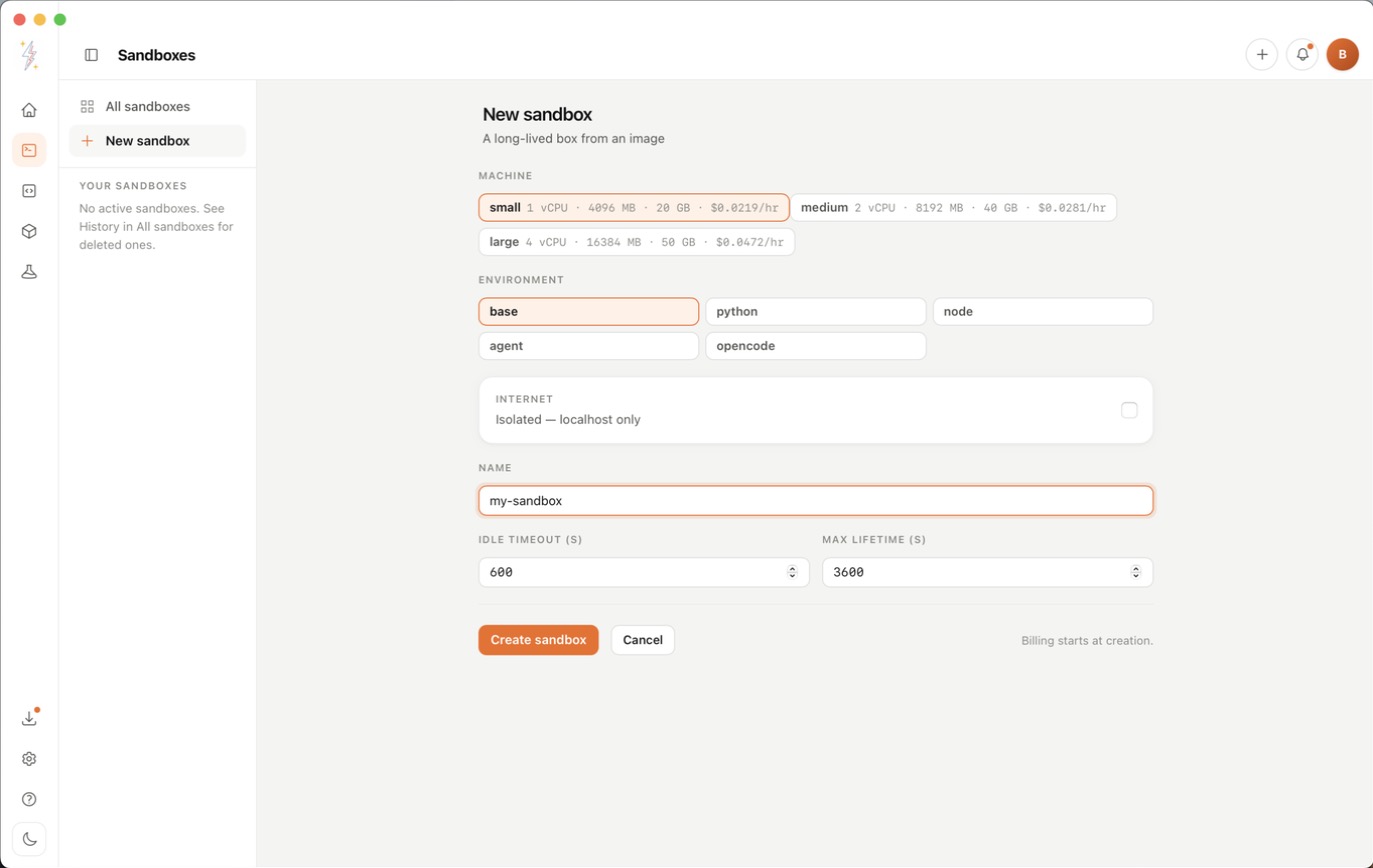
Press New sandbox in the sidebar, then choose:
- Machine: each size shows its CPUs, memory, disk and price per hour.
- Environment: the software the sandbox starts with.
- Internet: turn it on if the sandbox needs to download things. Off means it can only reach itself.
- Name: leave it blank to get one picked for you.
- Idle timeout: the sandbox pauses after this many seconds with no use. Its files are kept.
- Max lifetime: the sandbox and its files are deleted this many seconds after it was created. It starts at 3600, one hour. Set it to 0 to keep the sandbox until you delete it.
Press Create sandbox. Billing starts when it is created.
Open a sandbox
A sandbox opens on its Overview. From here you can:
- Run one command in
/workspaceand see its output, for examplepip install requests. - See its machine, environment and other details.
- Change when it pauses on its own, from 15 minutes to 24 hours.
- Go to Terminal, Files, Ports or Metrics (CPU, memory and network).
Use the terminal
Terminal is a shell in the sandbox, inside the app. If the sandbox
is paused, resume it first. Your files in /workspace are still there.
Move files
Files lists the folders in the sandbox. Press Upload, or drop files onto the list, to put them in the open
folder. Download saves a file to Downloads/BoltzLabs on your Mac.
Open a port
Ports forwards a server running in the sandbox to localhost on your Mac. Pick a common port or type any port. To share it instead,
press Open port in browser: it opens a public preview through
boltzlabs.cloud.
Pause, resume, fork and delete
Each row in the list has these buttons. An open sandbox has Pause, Resume and Delete at the top.
- Pause stops compute billing and keeps the files.
- Resume starts it again, and compute billing with it.
- Fork makes a new sandbox with a copy of
/workspace. Running programs are not copied. The new sandbox is billed on its own. - Delete removes the sandbox and its files, and stops billing.